
 GROWTH GUIDE
Google Business Profile Optimization: 2026 Playbook
Optimize these core elements now: verify your listing, choose a specific primary category, complete every field, add high-quality photos, and run a repeatable review workflow. That five-step sequence is the foundation of every effective Google Business Profile optimization effort, and everything in this guide builds on it.
Here is your immediate priority checklist:
- Verify your profile at Business before touching anything else — an unverified profile can be edited by anyone and won’t rank.
- Set the most specific primary category that matches your core service (not a broad parent category).
- Complete every field — name, address, phone, hours, website, description, services, and attributes.
- Upload at least 10 high-quality photos covering your exterior, interior, team, and work.
- Launch a review workflow — a consistent process for requesting, receiving, and responding to Google reviews.
Do these five things in the next week and you will likely see more profile views, more calls, and more direction requests within 30 days. The metrics to watch first: profile views, call clicks, and direction requests inside Google Business Profile Insights.
Key Takeaways
A fully optimized, actively managed Google Business Profile is the highest-ROI local marketing asset most small businesses are underusing — and the gap between a complete profile and a neglected one shows up directly in calls, direction requests, and bookings.
| Point | Details |
|---|---|
| Verify and complete first | An unverified or incomplete profile cannot rank; claim, verify, and fill every field before anything else. |
| Category specificity drives ranking | Choose the most specific primary category available — it determines which searches and features your profile qualifies for. |
| Ongoing activity signals matter | Weekly posts, fresh photos, and prompt review responses tell Google your profile is active and trustworthy. |
| Cross-channel consistency is required | NAP, services, and hours must match across your GBP, website, and all citation sources for maximum local ranking impact. |
| Service Grower manages the full workflow | Service Grower connects GBP, AnswerReady™ websites, review automation, and booking forms in one platform for measurable local growth. |
Table of Contents
- How to claim and verify your Business Profile
- Exactly how to fill every profile field correctly
- What photos, videos, and virtual tours actually move the needle
- How to get more Google reviews, reply effectively, and use Q&A
- Using posts, product listings, and booking links to drive conversions
- How GBP signals influence local ranking: relevance, distance, and prominence
- Managing multiple locations, bulk uploads, and the GBP API
- How to measure GBP impact: Insights, KPIs, and reporting cadence
- Common policy violations, how to avoid suspension, and reinstatement steps
- How long GBP optimization takes and what it costs
- Why GBP optimization must be ongoing and integrated with your website
- How to use Google My Business messaging effectively
- Industry-specific GBP attributes and special features
- Tips for optimizing your GBP for voice search
- How to troubleshoot common GBP data accuracy issues
- What most GBP advice gets wrong
- More calls and bookings start with the right platform
- Sources
How to claim and verify your Business Profile
Every optimization effort starts here. An unclaimed profile is a liability — Google allows anyone to suggest edits, and competitors or bots sometimes do exactly that.
Step-by-step verification options:
- Search your business name on Google Maps or Google Search. If a profile exists, click “Claim this business.” If not, go to business.google.com and create a new listing.
- Sign in with the Google account you want to own the profile.
- Choose your verification method from the options Google presents.
Verification methods and typical timelines:
- Postcard by mail: Google mails a PIN to your business address. Arrives in 5–14 days. Most common for new listings.
- Phone or text: Available for some business types. Instant PIN delivery.
- Email: Available for select accounts. Instant.
- Video verification: Google may ask you to record a short video showing your storefront, interior, and proof of ownership. Reviewed within a few days.
- Live video call: A Google agent walks you through verification in real time. Scheduled in advance.
- Bulk verification: Available for businesses with 10 or more locations. Requires submitting a spreadsheet and is reviewed by Google’s team, which can take several weeks.
- Search Console verification: If your website is already verified in Google Search Console, Google may offer instant verification.
When verification stalls:
- Postcard never arrived? Request a new one after 14 days.
- Video rejected? Re-record in better lighting, showing your address number clearly on the building.
- Profile shows “Pending” for more than 7 days after video submission? Use the Google Business Profile support chat to escalate.
Access governance is worth setting up from day one. Assign yourself as the primary Owner (only one account can hold this role). Add a Manager role for team members or agencies — managers can edit the profile but cannot remove the owner or delete the listing. If you ever lose access, use the “Request access” flow on the existing profile page and Google will contact the current owner.
Exactly how to fill every profile field correctly
Google’s local ranking documentation is direct: a complete, accurate Business Profile improves your chance of appearing in relevant local searches. Incomplete profiles leave ranking signals on the table.
Field-by-field checklist:
- Business name: Use your real-world name exactly as it appears on your signage and legal documents. No keyword stuffing (“Joe’s Plumbing — Best Plumber in Austin TX” is a policy violation). Limit: 75 characters, but shorter is better.
- Primary category: The single most important field. Google’s category guidance is explicit — choose a specific category, not a generic one, because categories determine which searches and special features your profile qualifies for. “HVAC Contractor” beats “Contractor.” “Italian Restaurant” beats “Restaurant.”
- Additional categories: Add up to 9 more. Use them for secondary services you genuinely offer.
- Address or service area: Brick-and-mortar businesses enter a physical address. Service-area businesses (plumbers, cleaners, mobile services) hide their address and define service areas by city, county, or zip code instead.
- Phone: Use a local number when possible. Tracking numbers are allowed but must forward to your real number.
- Website: Link to your homepage or a location-specific landing page. If your site runs on Service Grower’s AnswerReady™ platform, the page content and your GBP fields should mirror each other — same service names, same service areas, same hours.
- Hours: Set accurate regular hours. Add holiday hours proactively. Use “More hours” for specific services (e.g., drive-through hours, delivery hours).
- Appointment/booking link: Add a direct URL to your booking page or SmartRequest form.
- Services: List every service you offer with a name and short description. Character limit: 300 characters per service description.
- Products: Add individual products with photos, prices, and descriptions where applicable.
- Attributes: These vary by category. Common ones include “Women-owned,” “Wheelchair accessible,” “Free Wi-Fi,” “Outdoor seating.” Check every attribute your category offers.
- Business description: 750-character limit. Lead with what you do and who you serve. No promotional language, URLs, or phone numbers.
- Opening date: Add your founding or opening date — it contributes to prominence signals over time.
- Photos: Covered in the next section, but the minimum is 10 photos before you consider the profile “complete.”
Common mistakes to avoid:
- Keyword-stuffing the business name (policy violation, suspension risk).
- Using a UPS Store or virtual office address for a service-area business.
- Inconsistent NAP (Name, Address, Phone) across your website, Yelp, and other directories — Google cross-references these.
- Leaving hours blank or set to “Open 24 hours” when that is not accurate.
Pro Tip: When you choose your primary category, cross-reference it against the PlePer GBP categories tool, which maintains a near-real-time export of every available category and its associated attributes. The most specific match in PlePer is almost always the right pick.
| Field | Character limit | Common mistake |
|---|---|---|
| Business name | 75 characters | Adding keywords or city names |
| Business description | 750 characters | Using URLs or phone numbers |
| Service description | 300 characters | Leaving blank or copy-pasting |
| Post body | 750 characters | Writing walls of text; 150–300 words performs better |
What photos, videos, and virtual tours actually move the needle
The type of photo matters as much as the quantity.
Photo types to prioritize:
- Exterior/storefront: Multiple angles, different times of day, and the street view so customers can find you.
- Interior: Show the space customers will walk into — waiting areas, dining rooms, treatment rooms.
- Team photos: Faces build trust faster than any copy.
- Work/project shots: Before-and-after for contractors, plated dishes for restaurants, styled cuts for salons.
- Branded vehicles: For mobile service businesses, a wrapped truck is a trust signal.
- Product photos: Clean, well-lit, consistent background.
Video guidance: Keep clips to 30 seconds or under. Google accepts MP4 and MOV formats. Resolution should be at least 720p. Virtual tours (created through Google-approved photographers using Street View technology) make the biggest difference for hospitality, healthcare, and fitness businesses where the physical environment is part of the purchase decision.
| Asset type | Recommended specs | Refresh cadence |
|---|---|---|
| Photos (JPG/PNG) | Min 720px wide, max 5MB | Monthly |
| Videos (MP4/MOV) | Min 720p, max 75MB, under 30 sec | Quarterly |
| Virtual tour | Shot by Google-approved photographer | Annually or after renovation |
| Logo | Square, minimum size required | When branding changes |
| Cover photo | Recommended image size per guidelines | Seasonally |
Pro Tip: Geotag your photos before uploading. Most smartphones embed GPS coordinates automatically, but if you strip metadata during editing, use a tool like GeoImgr to re-embed location data. Geotagged photos from your actual business location send a subtle but real geographic signal.

How to get more Google reviews, reply effectively, and use Q&A
Reviews are one of the clearest prominence signals Google uses in local ranking. More reviews, higher average ratings, and consistent owner responses all contribute — and the gap between businesses that manage reviews actively and those that don’t is visible in the local pack.
Review-request process:
- Ask within 24–48 hours of service completion, when the experience is fresh.
- Send a direct review link (find it in your GBP dashboard under “Ask for reviews”) via text or email — never ask in person and then hand them a device.
- One follow-up message is acceptable if no review appears after 5 days. Two follow-ups is the ceiling.
- For high-volume businesses, integrate the review link into your post-service email or SMS workflow.
Reply templates:
Positive review: “Thank you, [Name]! We’re glad [specific service] went well. We look forward to seeing you again — and if there’s ever anything we can do better, just let us know.”
Negative review: “Thank you for the feedback, [Name]. We’re sorry your experience didn’t meet expectations. Please reach out to us directly at [phone/email] so we can make this right.”
Keep responses under 100 words. Acknowledge the specific service mentioned. Never argue, never offer discounts publicly, and never copy-paste the same reply to every review — Google can detect templated responses and customers definitely notice.
Google Q&A:
Seed your own Q&A section by asking and answering the questions customers ask most often (“Do you offer free estimates?” “Are you open on Sundays?”). Monitor it weekly — anyone can post a question, and anyone can post an answer, including competitors. Set up Google Alerts for your business name to catch new Q&A activity.
Compliance rules:
- Never offer incentives (discounts, gifts, free services) in exchange for reviews.
- Never ask only happy customers to leave reviews — that is selective solicitation and violates Google’s policy.
- Never post fake reviews from staff accounts.
- Never use a review gating tool that filters negative feedback before it reaches Google.
Using posts, product listings, and booking links to drive conversions
Google Posts expire after 7 days (standard updates) or at the event end date. That cadence is your minimum posting frequency — weekly at least, more often during promotions.
What to post:
- Offers: Discount or promotion with a clear expiration date and redemption instructions.
- Events: Class schedules, open houses, seasonal events with date/time.
- Product highlights: Feature a specific product or service with a photo and a “Learn more” or “Buy” button.
- Seasonal updates: Holiday hours, weather-related closures, new seasonal menus.
Products and services: List every service with a name, description, and price range where applicable. For restaurants, activate the menu feature. For healthcare providers, use the services section to list specific treatments. For e-commerce-adjacent businesses, the Products tab lets you link directly to purchase pages.
Booking links: Add your booking URL in the “Appointment links” field. If you use a third-party scheduler (e.g., Calendly, Acuity, or a platform like Service Grower’s SmartRequest), paste the direct booking URL there. Google also integrates with select scheduling partners for native booking inside the profile.
Pro Tip: Add UTM parameters to every URL in your GBP posts and booking links. Use a format like ?utm_source=google&utm_medium=gbp&utm_campaign=post_offer so Google Analytics 4 attributes traffic and conversions correctly. Without UTMs, GBP-driven website visits often show up as “direct” traffic and you lose the attribution.
How GBP signals influence local ranking: relevance, distance, and prominence
Google’s local ranking documentation defines three pillars: relevance (how well your profile matches the search), distance (how far you are from the searcher or the location they specified), and prominence (how well-known and trusted your business is). You can’t control distance, but you can control relevance and prominence almost entirely through your GBP and website.
How GBP fields map to each pillar:
- Relevance: Primary category, additional categories, services listed, keywords in your description, and attributes. The more precisely your profile describes what you do, the better Google can match you to specific queries.
- Distance: Your verified address or service area. Set service areas accurately — overstating them dilutes your relevance signal.
- Prominence: Review count and rating, number of local citations (consistent NAP across directories), local backlinks to your website, and activity signals (photo uploads, posts, review responses).
Tactics that move prominence:
- Build local citations on Yelp, the Better Business Bureau, your local Chamber of Commerce, and industry directories. NAP must be identical across all of them.
- Earn local backlinks — sponsor a local event, get listed in a neighborhood blog, or contribute a quote to a local news story.
- Respond to every review. Google’s documentation notes that responding to reviews improves your business’s visibility.
- Post at least once per week to signal that the profile is active.
First 30/60/90 days:
- Days 1–30: Verify, complete every field, upload 15+ photos, set up review request workflow.
- Days 31–60: Publish weekly posts, respond to all reviews, build 10+ consistent citations.
- Days 61–90: Audit category alignment, add Q&A seeds, check Insights for call and direction trends.
Pro Tip: Add LocalBusiness structured data (schema.org markup) to your website and make sure the name, address, phone, and hours match your GBP exactly. Google cross-references these sources, and a mismatch between your schema and your profile can suppress your local ranking.
Managing multiple locations, bulk uploads, and the GBP API
Businesses with 10 or more locations should not manage profiles one by one. The manual approach breaks down fast — a single category change across 50 locations takes hours and introduces errors.
Account structure for multi-location businesses:
- Create a Business Account (formerly “Location Group”) in Google Business Profile Manager.
- Add all locations to that account.
- Assign an Owner at the account level for full control.
- Assign Managers at the location level for regional or store managers who need edit access only to their location.
- For franchise or enterprise setups, create separate Business Accounts per region and grant cross-account access to a central admin.
CSV bulk upload requirements:
- Download Google’s official bulk upload template from the GBP dashboard.
- Address formatting must follow USPS standards — no abbreviations in unexpected fields, no suite numbers in the wrong column.
- Categories must use exact Google category names. Cross-reference against the GBP categories API or PlePer to confirm spelling before upload.
- Latitude/longitude columns are optional but recommended for locations in new developments where Google’s geocoder may place the pin incorrectly.
- Common CSV pitfalls: trailing spaces in address fields, inconsistent phone formatting (use E.164 format: +1XXXXXXXXXX), and category names that differ by a single word from Google’s official list.
When to use the API:
The Google Business Profile API exposes categoryId as the stable identifier for programmatic location updates. Use the API when you need to automate updates across hundreds of locations, sync GBP data with a CRM or POS system, or build a custom reporting dashboard. For most businesses under 50 locations, a SaaS platform with bulk-edit capability is faster to implement than a custom API integration.
What to require from any vendor managing your multi-location GBP:
- Audit logs showing who changed what and when.
- Scheduled publishing for posts and hours updates.
- Centralized reporting across all locations in a single dashboard.
- Category-change alerts (Google sometimes resets categories after edits).
How to measure GBP impact: Insights, KPIs, and reporting cadence
GBP Insights gives you data on how customers find and interact with your profile. The metrics that matter most for local business outcomes are not always the ones that look impressive in a screenshot.
Key metrics to track:
- Profile views: Broken down by Search vs. Maps. A high Maps view count suggests strong local intent.
- Search queries: The actual terms people used to find your profile. Mine these for content and service ideas.
- Calls: Direct calls from the profile. Track week-over-week.
- Direction requests: Strong intent signal — someone is planning to visit.
- Website clicks: Traffic sent from GBP to your site.
- Bookings: If you have a booking link connected, track completions separately in your booking platform.
- Photo views: A proxy for profile engagement. Rising photo views often precede rising call volume.
Building a single dashboard:
Connect GBP data with Google Analytics 4 using UTM-tagged URLs (as covered in the Posts section). Add call tracking via a number that forwards to your main line — services like CallRail let you attribute calls to GBP specifically. Pull all three data streams (Insights, GA4, call tracking) into a Google Looker Studio report for a weekly view.
Reporting cadence:
- Weekly: Check calls, direction requests, and new reviews. Respond to all reviews.
- Monthly: Review search query trends, photo view counts, and post engagement. Adjust post topics based on what drove clicks.
- Quarterly: Audit all profile fields for accuracy, refresh photos, check category alignment, and compare KPIs to the prior quarter.
Tracking checklist:
- UTM parameters on all GBP links (posts, booking, website button).
- Call tracking number active and forwarding correctly.
- GA4 goal or conversion event set for booking form completions.
- GBP Insights exported monthly for trend comparison.
Common policy violations, how to avoid suspension, and reinstatement steps
A suspended profile disappears from Google Search and Maps entirely. Recovery takes time, and there is no guarantee of reinstatement if the violation is serious.
Top suspension triggers:
- Misleading business name: Adding keywords, service areas, or taglines to the business name field.
- Fake or duplicate listings: Creating a second profile for the same location, or listing a virtual office as a physical storefront.
- Improper service-area settings: A service-area business listing a physical address it does not staff or own.
- Sudden bulk edits: Changing the name, address, and category simultaneously can trigger an automated review.
- Ineligible business type: Certain business models (rental properties, online-only businesses without a physical location) do not qualify for a GBP listing.
Prevention checklist:
- Keep a folder with your business license, utility bill, lease agreement, and photos of your storefront. You will need these for reinstatement.
- Never change your business name, address, and primary category in the same editing session.
- Audit for duplicate listings quarterly — search your business name on Google Maps and report any duplicates you find.
- Review Google’s Business Profile guidelines when you add a new location or change your business model.
Reinstatement process:
- Identify the likely cause of suspension by reviewing recent edits and Google’s policy pages.
- Correct the violation (remove keyword stuffing from the name, fix the address, delete a duplicate).
- Gather documentation: business license, proof of address, photos of your physical location.
- Submit a reinstatement request through the Google Business Profile support portal.
- Expect a response in 3–10 business days. If denied, you can appeal once with additional documentation.
How long GBP optimization takes and what it costs
The initial setup — claiming, verifying, and completing your profile — takes 2–4 hours of focused work for a single location. Verification itself adds 5–14 days if you need a postcard. After that, the profile is never truly done.
Timeline for initial optimization:
- Week 1: Claim and verify, complete all fields, upload photos.
- Weeks 2–4: Launch review workflow, publish first 3–4 posts, build 10 citations.
- Month 2: First Insights review, adjust categories if needed, add Q&A seeds.
- Month 3: Baseline analytics established, first meaningful KPI comparison available.
Cost overview:
GBP itself is free. Optional costs include:
- Citation-building tools or services: Varies by provider and scope.
- Call tracking software: Typically a monthly subscription per number.
- SaaS platforms for GBP management: Monthly subscription, varies by feature set and number of locations.
- Managed services (agency or platform like Service Grower): Monthly retainer; see the Service Grower section below for specifics.
- Optional ad spend: Google Local Services Ads and Google Search Ads are separate from GBP but complement it. For budget guidance, the Google Ads cost guide for local businesses covers typical spend ranges by industry.
| Task | Frequency | Estimated time |
|---|---|---|
| Respond to new reviews | Daily | 5–10 min |
| Publish a GBP post | Weekly | 15–20 min |
| Check Insights metrics | Weekly | 10 min |
| Refresh photos | Monthly | 20–30 min |
| Full profile audit | Quarterly | 60–90 min |
| Citation consistency check | Quarterly | 30 minutes |
Staffing guidance: A single location with moderate review volume can be managed in-house with 1–2 hours per week. Multi-location businesses or those in competitive markets typically benefit from a SaaS platform or managed service to maintain consistency and catch issues before they become suspensions.
Why GBP optimization must be ongoing and integrated with your website
QuickSprout’s GBP optimization guide frames it plainly: treat GBP optimization as an ongoing discipline, not a one-time setup task. The businesses that consistently outrank competitors in the local pack are not the ones with the most elaborate profiles — they are the ones that post regularly, respond to every review, and keep their information accurate across every platform.

Activity signals matter. Regular photo uploads, weekly posts, and consistent review responses increase customer engagement and tell Google the business is active. A profile that hasn’t been touched in six months reads as stale, even if the underlying information is accurate.
Cross-channel consistency is equally important. Savvy marketers integrate GBP changes with their website and broader digital footprint — matching NAP, services, and service-area information across channels builds trust signals for local ranking. If your GBP says you serve Austin and Round Rock but your website only mentions Austin, that mismatch costs you. Service Grower’s AnswerReady™ websites are built to mirror your GBP fields exactly, so updates to one propagate consistently to the other.
Operational checklist for ongoing GBP management:
- Respond to every review within 24 hours.
- Publish at least one post per week.
- Update hours for every holiday at least two weeks in advance.
- Add new photos after every completed project or service.
- Audit category alignment after any service expansion.
- Check for unauthorized edits monthly (Google allows the public to suggest changes).
Example workflow: Every Monday morning, check Insights for the prior week’s calls and direction requests. Respond to any new reviews. Draft and schedule the week’s GBP post. On the first of each month, pull a full Insights export and compare to the prior month. Quarterly, run a full NAP audit across your top 20 citation sources.
Pro Tip: Tie every GBP action to a measurable outcome. If you add a new service to your profile, note the date and watch whether call volume for that service increases over the next 30 days. This kind of before/after tracking turns GBP management from a chore into a feedback loop.
How to use Google My Business messaging effectively
Google’s messaging feature lets customers text your business directly from your profile. Response time is visible to searchers — Google displays your average response time, and a slow average can deter contacts before they ever reach you.
Steps to activate and use messaging:
- Open your GBP dashboard and navigate to “Messages.”
- Turn on messaging. Set up an automated welcome message that confirms you received the inquiry and gives an expected response time.
- Assign a team member to monitor the inbox daily. Google may disable messaging if your average response time exceeds 24 hours.
- Use the messaging inbox to answer pre-purchase questions, confirm appointments, and send booking links.
- Never use the messaging thread for sales pressure or promotional offers — keep it transactional and helpful.
Best practices:
- Keep your welcome message under 50 words and include your business hours.
- Respond within 2 hours during business hours. Set an after-hours auto-reply with your next available response time.
- Use the conversation to qualify leads before sending them to a booking form — a quick “What service are you looking for?” saves both parties time.
- Review message volume monthly. A spike in messages after a post or promotion tells you that content type is driving engagement.
Industry-specific GBP attributes and special features
Google unlocks different attributes and features based on your primary category. Choosing the right category is not just a ranking decision — it determines which conversion tools your profile can display.
Healthcare providers:
- Enable the “Online care” attribute if you offer telehealth.
- Add insurance networks accepted under the Health attributes section.
- List individual practitioners as separate profiles linked to the practice location.
- Use the “Appointment links” field to connect directly to your patient portal or scheduling system.
- Note: Healthcare profiles in the US are subject to HIPAA considerations — never include patient information in review responses.
Restaurants and food service:
- Activate the menu feature and keep it current with seasonal changes.
- Enable online ordering and reservation links through Google’s integrated partners.
- Add attributes like “Outdoor seating,” “Good for groups,” “LGBTQ+ friendly,” and “Curbside pickup” — these appear as filters in Google Maps searches.
- Upload food photos frequently. Menu item photos drive click-through rates on food-related searches.
Home services (HVAC, plumbing, electrical, cleaning):
- Use the service-area setting instead of a physical address if you don’t serve walk-in customers.
- List every service type individually (e.g., “AC installation,” “Furnace repair,” “Duct cleaning”) rather than a single “HVAC” entry.
- Add the “Licensed” and “Insured” attributes where available — these are trust signals that appear directly on the profile.
- Connect Google Local Services Ads to your GBP for the “Google Guaranteed” badge, which appears above standard local pack results.
Fitness and wellness:
- Add class schedules using the Events post type.
- Enable the “Online classes” attribute if applicable.
- Use the Products section to list membership tiers or service packages with pricing.
Tips for optimizing your GBP for voice search
Voice searches tend to be longer and more conversational than typed queries. Someone typing might search “plumber Austin TX,” but speaking, they ask “Who is the best plumber near me open right now?” Your GBP needs to answer both.
How to align your profile with voice search patterns:
- Complete your hours meticulously. “Open now” is one of the most common voice search filters. If your hours are wrong, you disappear from those results.
- Use natural-language phrases in your services and description. Instead of “HVAC services,” write “We repair and install air conditioners and furnaces for homeowners in Austin and surrounding areas.” That mirrors how people speak.
- Answer questions in your Q&A section. Voice assistants often pull answers directly from Q&A. Seed questions like “Do you offer same-day service?” and answer them in a single, complete sentence.
- Keep your NAP consistent everywhere. Voice search results often pull from multiple data sources. Inconsistent information across directories creates conflicting signals that suppress your appearance in voice results.
- Target “near me” intent. Make sure your service area is set correctly and your address is verified. “Near me” is one of the highest-volume voice search modifiers, and it resolves entirely based on location data.
Short, direct answers in your description and Q&A section are more likely to be read aloud by a voice assistant than long paragraphs. Write for the spoken answer, not the scanned page.
How to troubleshoot common GBP data accuracy issues
Google allows users, competitors, and automated systems to suggest edits to your profile. These edits can go live without your explicit approval. Monitoring for unauthorized changes is not optional.
Common data accuracy problems and fixes:
- Wrong address or pin location: Go to your GBP dashboard, edit the address, and drag the map pin to the correct location. If the pin keeps reverting, submit a correction through Google Maps using the “Suggest an edit” flow from a personal account, then approve it from your business account.
- Incorrect hours: Edit directly in the dashboard. If hours keep reverting, check whether a third-party data aggregator (like Foursquare or Factual) is feeding incorrect data to Google. Update your hours on those aggregators as well.
- Wrong primary category: Edit in the dashboard. Note that Google may reset your category after a major profile edit — check it after any bulk change.
- Duplicate listings: Search your business name on Google Maps. If you find a duplicate, use the “Claim this business” or “Suggest an edit” flow to mark it as a duplicate and request removal. Google typically resolves duplicates within 2–4 weeks.
- Unauthorized name changes: If your business name was changed by a user suggestion, edit it back immediately and report the change through GBP support. Document the incident with screenshots.
- Missing or altered photos: Google allows users to upload photos to your profile. You cannot remove user-contributed photos unless they violate policy. Flag inappropriate photos using the “Report a problem” option on the photo itself.
Set up a monthly audit: search your business name on both Google Search and Google Maps from an incognito browser, and compare what you see to what your dashboard shows. Discrepancies between the two often indicate a pending user-suggested edit or a data conflict from an external source.
What most GBP advice gets wrong
Most guides treat Google Business Profile optimization as a setup task with a finish line. Complete the fields, upload some photos, ask for a few reviews, and you’re done. That framing is wrong, and it’s why so many local businesses plateau after an initial visibility bump.
The profiles that consistently hold top-three local pack positions share one characteristic: they are actively managed, not periodically touched. Weekly posts, prompt review responses, fresh photos after every notable job, and quarterly field audits. The businesses doing this are not spending hours per week — they are spending 30–60 minutes, consistently, every week.
The second thing most advice misses is the cross-channel dependency. Your GBP does not rank in isolation. Google compares your profile against your website, your citations, your reviews on other platforms, and your structured data. A perfectly optimized GBP attached to a thin, inconsistent website will underperform a moderately optimized GBP attached to a well-structured, locally relevant site. That is why aligning your GBP with your website content — same service names, same service areas, same hours — is not a nice-to-have. It is the mechanism by which your profile earns trust from Google’s algorithm.
The third gap: most businesses track vanity metrics (profile views) and ignore outcome metrics (calls, direction requests, booking completions). Profile views tell you reach. Calls tell you revenue. Optimize for the second.
More calls and bookings start with the right platform
GBP optimization is free, but managing it well takes systems. Service Grower gives local businesses a single platform that connects their Google presence to their website, reviews, and booking workflow — so nothing falls through the cracks.
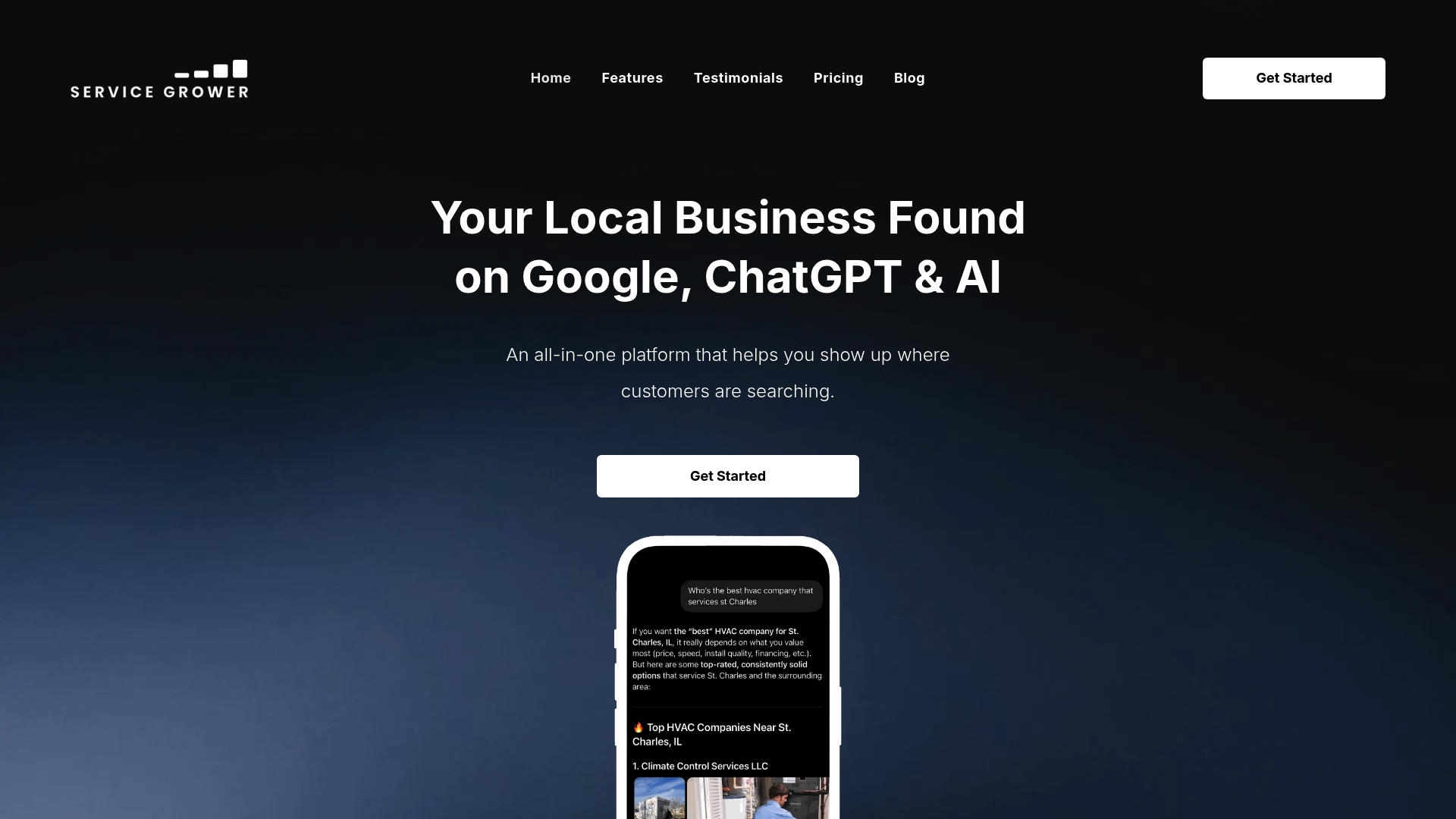
AnswerReady™ websites are built to mirror your GBP fields exactly, so your NAP, services, and service areas stay consistent across every surface Google checks. The review workflow inside Service Grower automates post-service review requests and surfaces responses that need attention before they age. SmartRequest booking forms connect directly to your GBP appointment link, turning profile visitors into confirmed appointments. GrowthView analytics pulls GBP Insights, call data, and booking completions into one dashboard so you can see what is actually driving revenue.
For businesses that want a managed approach, Service Grower’s team handles profile updates, post publishing, review responses, and reporting on your behalf. For those who prefer self-serve, the platform gives you the tools to do it yourself without juggling five separate logins.
Start with Service Grower or book a 15-minute call to see how it maps to your specific business type and market.
Sources
Use these official and practical sources when you need to go deeper on a specific topic:
- Tips to improve your local ranking on Google - Google Business Profile Help